
Welcome to our comprehensive guide on the best video editing software for green screen effects in 2025. Whether you're a seasoned filmmaker, a social media creator, or a marketing professional, mastering chroma key can elevate your content from simple to spectacular.
Green screen technology allows you to replace a solid-colored background with any image or video you can imagine, opening up a universe of creative possibilities. However, not all software is created equal. A great keyer needs to be precise, handling tricky details like fine hair and motion blur while suppressing that dreaded green 'spill' that can ruin a shot. Choosing the right tool is critical for producing clean, professional-looking composites that seamlessly blend your subject with a new environment.
In this listicle, we break down the top tools available today. We cover everything from professional-grade desktop applications like Adobe Premiere Pro and DaVinci Resolve to powerful mobile editors and innovative AI platforms that are redefining the workflow entirely. For those seeking accessible, browser-based solutions for green screen work, the online video editor Veed.io provides robust chroma keying capabilities.
Our goal is to help you find the perfect match for your projects and budget. We will analyze each option's keying features, ease of use, pricing, and unique strengths. With direct links and screenshots for each tool, you'll have all the information needed to select the best video editing software with green screen functionality and start creating stunning visual effects.
1. Sprello
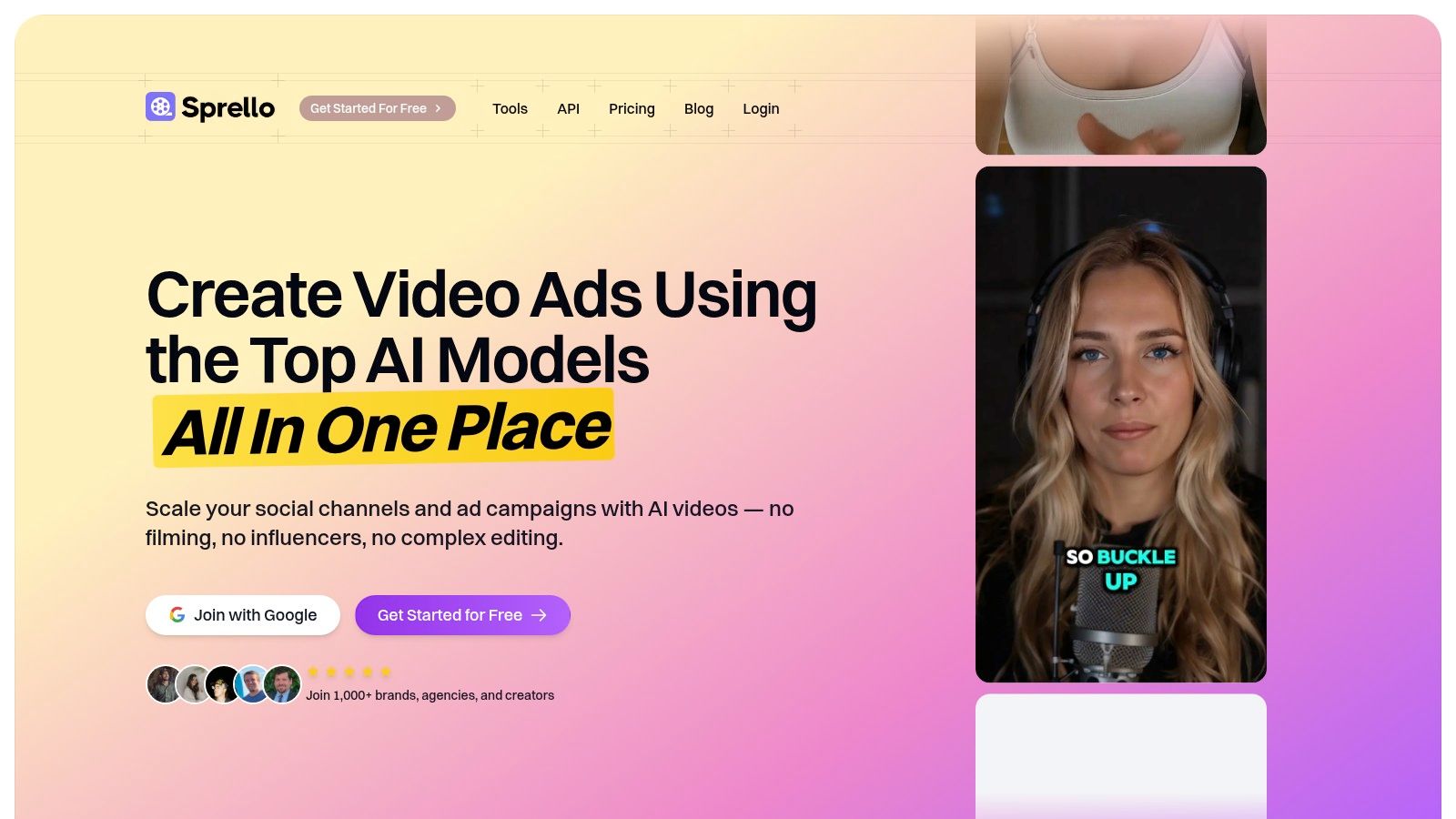
Sprello redefines the concept of green screen editing by largely eliminating the need for it. Positioned as an all-in-one AI video marketing suite, this platform is engineered for speed and scale, allowing teams to produce high-converting video ads and social content without ever setting up a camera or a physical green screen. Its workflow is built around generative AI, integrating script creation, AI-powered media generation, and a visual storyboard editor into a single, seamless process. This makes it a formidable choice for teams that need to test creative concepts rapidly and increase content output without the traditional costs and complexities of filming.
Instead of keying out a background, Sprello’s AI background removal tool achieves the same professional effect with a single click. This feature is a core part of its value, enabling users to place AI avatars, user-generated content, or their own footage against any backdrop, whether it's a solid color, an AI-generated image, or premium B-roll. The platform excels at creating dynamic, polished videos quickly, making it a standout solution in the realm of modern video editing software green screen alternatives.
Key Features and Strengths
Sprello's strength lies in its consolidated, AI-driven workflow that accelerates production from idea to export.
- All-in-One AI Suite: It combines a script generator, a visual storyboard, and integrated media generation using top AI models (like Kling and Veo for video, Ideogram for images, and ElevenLabs for voice). This minimizes the need to switch between different tools, streamlining the entire creative process.
- One-Click AI Background Removal: This feature serves as a direct, more efficient alternative to traditional chroma keying. It allows users to instantly isolate subjects from their original backgrounds, perfect for creating professional-looking talking head videos, product features, and picture-in-picture (PiP) layouts.
- Cost-Effective Scaling: Sprello uses a credit system for new AI generations, but video creation and rendering using your existing assets are unlimited. This model is ideal for teams that want to test numerous variations of an ad without incurring high costs for every export.
- Built-in Production Tools: The platform includes auto-synced dynamic captions, royalty-free music, and instant scene previews, which add a professional polish to videos without requiring extra editing steps.
Pricing Structure
Sprello offers a 3-day free trial, followed by several subscription tiers designed for different usage levels.
| Plan | Price (Billed Annually) | Credits | Storage |
|---|---|---|---|
| Starter | $24/month | 1,000 / month | 10 GB |
| Growth | $49/month | 2,250 / month | 30 GB |
| Scale | $99/month | 5,000 / month | 100 GB |
An enterprise solution is also available for teams with higher demands for credits, storage, and support.
Who Is It Best For?
Sprello is exceptionally well-suited for marketing-focused teams who prioritize speed and creative testing. E-commerce brands, marketing agencies, and small businesses can leverage its AI capabilities to produce a steady stream of social media ads and content for platforms like TikTok and YouTube. Its workflow is designed to help users learn what converts by enabling them to ship more videos, faster. While it may not replace a traditional NLE for cinematic projects, it is a powerful, modern tool for anyone looking to bypass the technical hurdles of green screen filming.
Visit Website: https://sprello.ai
2. Adobe Premiere Pro
Adobe Premiere Pro stands as an industry benchmark for professional video editing, and its green screen capabilities are a core reason why. For creators and businesses needing a reliable, high-performance tool integrated into a larger creative ecosystem, Premiere Pro is a top-tier choice. Its built-in Ultra Key effect is powerful and efficient, allowing for clean keying with just a few clicks.
This editor excels at handling common green screen scenarios with speed. You can easily adjust settings like spill suppression to clean up green halos and use matte cleanup tools to refine the edges of your subject. This makes it an excellent piece of video editing software for green screen work that needs to be done quickly and professionally within one application.
Key Features and User Experience
- Ultra Key Effect: A robust, GPU-accelerated tool for fast and effective chroma keying. It includes advanced controls for matte generation, spill suppression, and color correction.
- Integration with After Effects: For highly complex composites with intricate motion tracking or visual effects, Premiere Pro’s Dynamic Link feature allows you to send clips directly to After Effects without rendering, a workflow that saves immense time.
- Broad Format Support: Handles a vast range of video codecs and formats, ensuring compatibility with footage from virtually any camera.
While it has a steeper learning curve than some alternatives, its logical interface and vast library of tutorials make it accessible. For those just starting out with professional editors, you can learn more about Adobe Premiere Pro and other beginner-friendly options here.
Best for: Professional video editors, marketing teams, and content creators who need a powerful, all-in-one editor and may require integration with other Adobe Creative Cloud apps.
| Feature | Details |
|---|---|
| Pricing | Subscription-based via Adobe Creative Cloud (starts at $22.99/month) |
| Pros | Industry-standard tool, fast Ultra Key effect, seamless After Effects integration. |
| Cons | Requires a subscription, complex composites may still need After Effects. |
Website: https://www.adobe.com/products/premiere.html
3. Adobe After Effects
While Premiere Pro handles standard keying well, Adobe After Effects is the heavyweight champion for complex visual effects and compositing. It’s where professionals turn when a green screen shot involves intricate motion, fine details like hair, or multiple layers that need to be blended seamlessly. Its suite of specialized keying tools, led by the industry-acclaimed Keylight effect, offers unparalleled precision.
After Effects is designed for shot-by-shot perfection rather than timeline-based editing. This makes it the ultimate piece of video editing software for green screen tasks that require advanced techniques like motion tracking, rotoscoping, and multi-pass compositing. The combination of Keylight, Key Cleaner, and the Advanced Spill Suppressor provides a powerful workflow for achieving flawless, Hollywood-level results.
Key Features and User Experience
- Keylight + Key Cleaner: This combination is the gold standard for pulling a clean key, even from challenging footage. It excels at preserving fine details and offers extensive controls to refine the matte.
- Advanced Rotoscoping and Tracking: Features like the Roto Brush and robust motion trackers allow you to isolate moving subjects with incredible accuracy, essential for composites where the green screen is imperfect.
- Deep Integration with Premiere Pro: Using Dynamic Link, you can send a clip from your Premiere Pro timeline directly to After Effects for advanced work and see the changes update in real-time, creating a fluid professional workflow.
The learning curve for After Effects is notably steep, as it functions more like a motion graphics and compositing environment than a traditional video editor. However, for visual effects artists and filmmakers who need absolute control, its power is unmatched.
Best for: Visual effects artists, motion graphics designers, and filmmakers who require the most powerful and precise tools for complex green screen compositing and VFX shots.
| Feature | Details |
|---|---|
| Pricing | Subscription-based via Adobe Creative Cloud (starts at $22.99/month) |
| Pros | Gold-standard keying tools used in film/TV, extensive VFX and compositing features, huge plugin ecosystem. |
| Cons | Steep learning curve, not a traditional NLE, requires a subscription. |
Website: https://www.adobe.com/products/aftereffects.html
4. Apple Final Cut Pro
For creators embedded in the Apple ecosystem, Final Cut Pro offers a uniquely optimized and intuitive green screen editing experience. Its performance, particularly on Apple Silicon Macs, is exceptional, making it a go-to for Mac users who need power without a steep learning curve. The built-in Green Screen Keyer is designed for speed, allowing users to achieve a clean key with a single click.
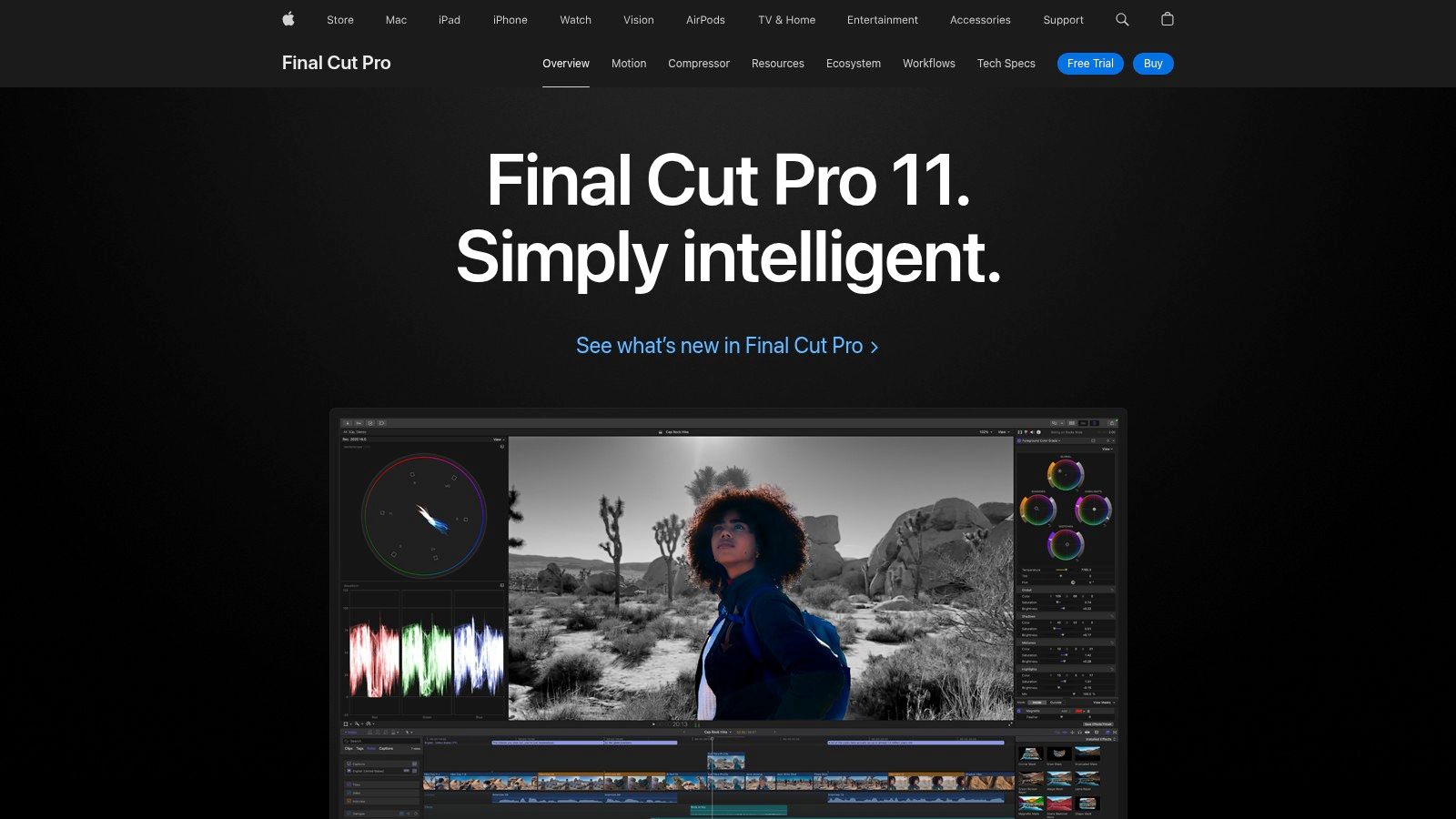
This editor simplifies what can be a complex process. All essential adjustments, such as refining edges or managing color spill, are accessible directly in the viewer, providing immediate visual feedback. This hands-on approach makes it a fantastic piece of video editing software for green screen tasks, especially for creators who value a fast, streamlined workflow and prefer to stay within the macOS environment.
Key Features and User Experience
- One-Click Green Screen Keyer: An incredibly fast tool that automatically analyzes and removes the green screen background. It offers simple, viewer-based controls for refining edges, strength, and spill suppression.
- Optimized for Apple Silicon: Delivers blazing-fast performance for rendering and playback of complex chroma key effects, minimizing frustrating lag time.
- Magnetic Timeline: A signature feature that helps prevent clip collisions and sync issues, making the overall editing process smoother and more intuitive.
- iPad Version: A subscription-based iPad app brings a touch-first, Apple Pencil-compatible workflow for editing on the go, though it is more feature-limited than the desktop version.
Best for: Mac-based content creators, YouTubers, and independent filmmakers who want a powerful, highly optimized, and user-friendly editor without a recurring subscription for the desktop version.
| Feature | Details |
|---|---|
| Pricing | One-time purchase of $299.99 for Mac; iPad version is subscription-based. |
| Pros | Extremely fast performance on Macs, very approachable one-click keyer tool. |
| Cons | Exclusive to Apple devices (macOS and iPadOS), iPad version is a separate subscription. |
Website: https://www.apple.com/final-cut-pro/
5. Blackmagic Design DaVinci Resolve
Blackmagic Design DaVinci Resolve has evolved from a legendary color grading suite into a comprehensive, all-in-one post-production powerhouse. Its green screen capabilities are located within its dedicated Fusion page, which offers a node-based compositing environment. This approach provides unparalleled control and precision for creators who need to tackle complex keying challenges.
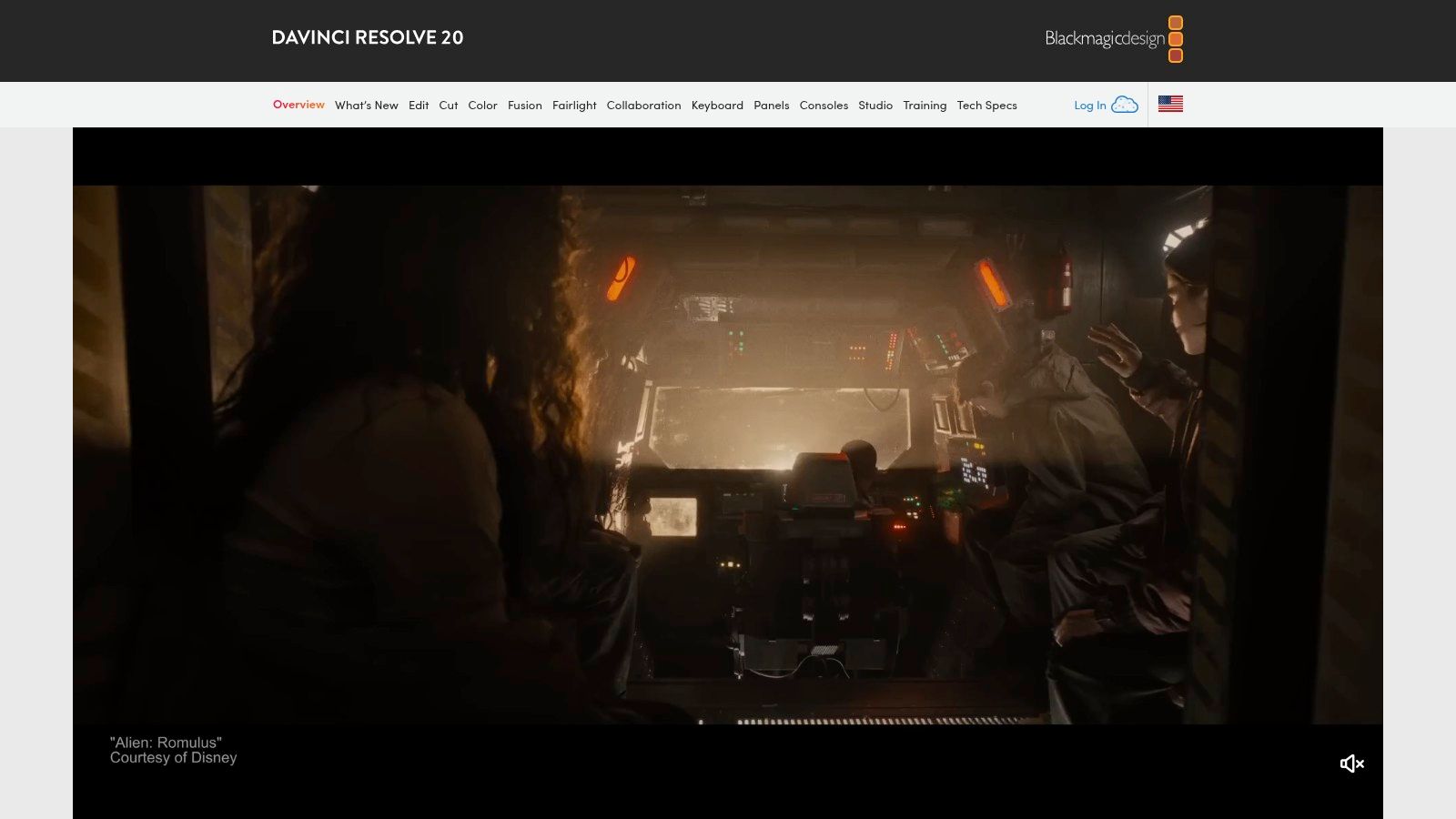
Resolve's strength lies in its specialized tools like the Delta Keyer and Chroma Keyer, which offer fine-tuned adjustments for spill suppression, edge refinement, and matte manipulation. While the node-based workflow can seem intimidating to newcomers, it allows for a non-destructive and highly flexible process. This makes it an exceptional piece of video editing software for green screen work, particularly for those who value granular control and professional color finishing in the same application.
Key Features and User Experience
- Fusion Page Keyers: Includes multiple advanced keyers like the Delta Keyer, offering precise control over screen balance, matte finesse, and spill suppression.
- Node-Based Workflow: Provides a powerful and logical system for building complex effects. Users can easily combine multiple keys, masks, and color corrections in a clear visual flowchart.
- World-Class Color Tools: Unmatched color grading capabilities allow you to perfectly match your subject to the new background, cleaning up difficult green spill and ensuring a seamless final composite.
The learning curve for the Fusion page is steeper than layer-based editors, but the free version of Resolve is incredibly generous, including most of the professional toolset.
Best for: Indie filmmakers, colorists, and prosumers who need professional-grade keying and color tools without a subscription and are willing to learn a node-based workflow.
| Feature | Details |
|---|---|
| Pricing | A powerful free version is available; DaVinci Resolve Studio is a one-time purchase of $295. |
| Pros | Extremely capable free version, industry-leading color tools, one-time payment for Studio. |
| Cons | Fusion’s node-based workflow has a significant learning curve for beginners. |
Website: https://www.blackmagicdesign.com/products/davinciresolve
6. CyberLink PowerDirector
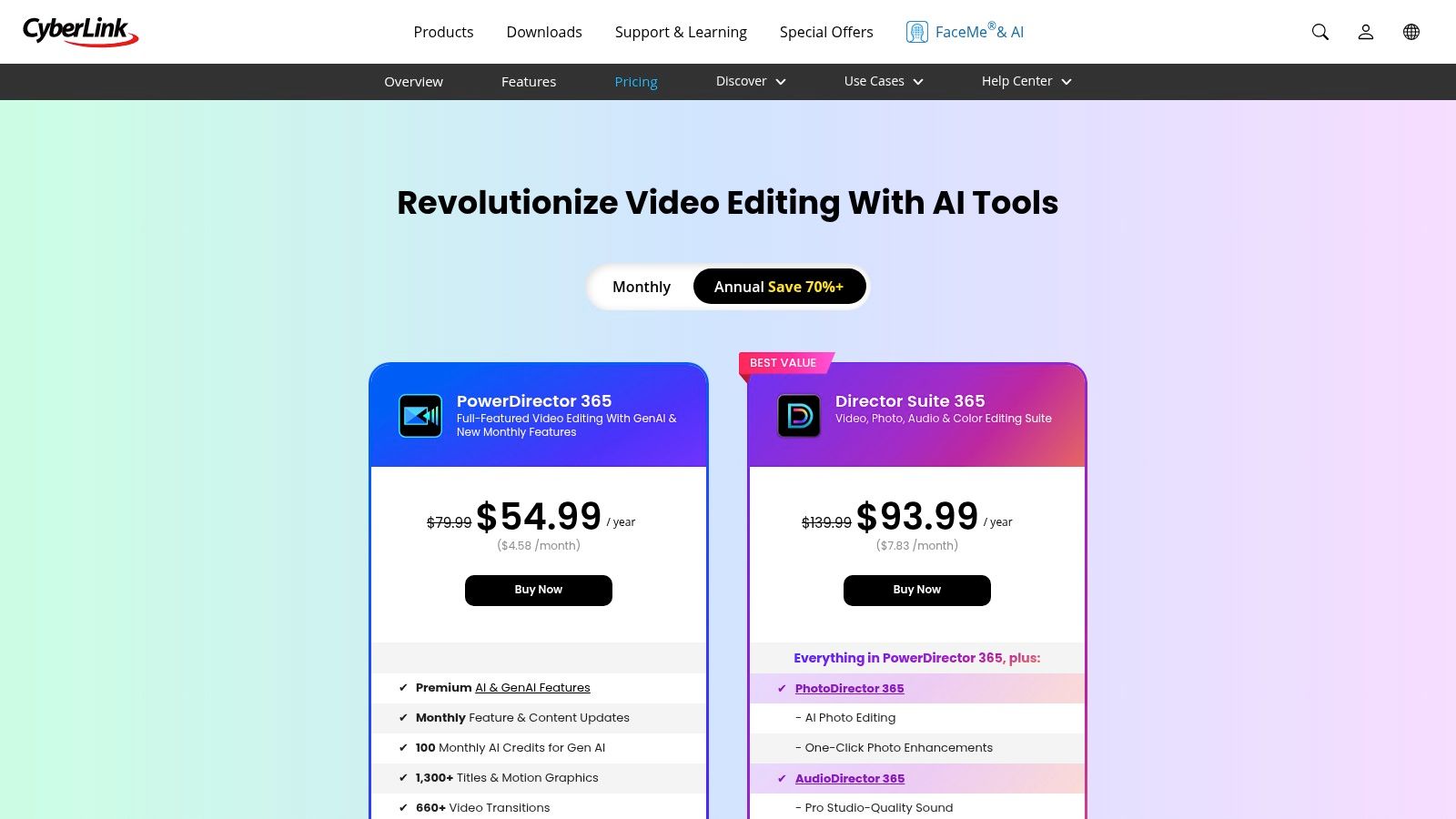
CyberLink PowerDirector is a highly accessible yet powerful video editor for Windows and Mac, striking a balance between consumer-friendly features and professional-level controls. It's a fantastic option for beginners and social media creators who want to achieve clean green screen effects without a steep learning curve. Its chroma key tool is straightforward, offering intuitive sliders to quickly remove the background and refine the result.
This editor is designed for speed and simplicity. The interface guides users through the process, and its chroma key tool includes easy-to-understand controls for tolerance and spill suppression, making it simple to get a good key with minimal effort. This makes it a strong contender for video editing software for green screen tasks where quick turnaround is essential, such as for YouTube videos or social media content.
Key Features and User Experience
- Intuitive Chroma Key: Features simple sliders for tolerance (how much color to key out) and spill control (removing green reflections), making it very approachable for newcomers.
- Guided Edits and Tutorials: The software includes guided modes and built-in tutorials that walk you through complex tasks like green screening, flattening the learning curve significantly.
- Flexible Licensing: PowerDirector offers both a subscription model (PowerDirector 365) with regular content updates and integrated stock media, as well as a one-time perpetual license for those who prefer to own their software.
While its interface is less intimidating than professional suites, achieving highly complex visual effects or intricate composites is often easier in more specialized software. However, for most common green screen applications, it delivers excellent results efficiently.
Best for: YouTubers, social media creators, and beginners looking for a feature-rich editor that makes green screen effects fast and easy to implement.
| Feature | Details |
|---|---|
| Pricing | Subscription (from $4.33/month for PowerDirector 365) or perpetual license options. |
| Pros | Good for beginners who need fast, easy green-screen results, flexible licensing choices to suit different buyers. |
| Cons | Advanced composites are easier to achieve in AE or Resolve, regional pricing and discounts vary. |
Website: https://www.cyberlink.com/products/powerdirector-video-editing-software/pricing.html
7. TechSmith Camtasia
TechSmith Camtasia is primarily known as a top-tier screen recording tool, but its integrated video editor offers surprisingly effective green screen features. For educators, trainers, and business professionals creating tutorials or explainer videos, Camtasia provides an all-in-one workflow from capture to final edit. Its "Remove a Color" effect is incredibly straightforward, allowing users to key out a background with just an eyedropper and a few slider adjustments.
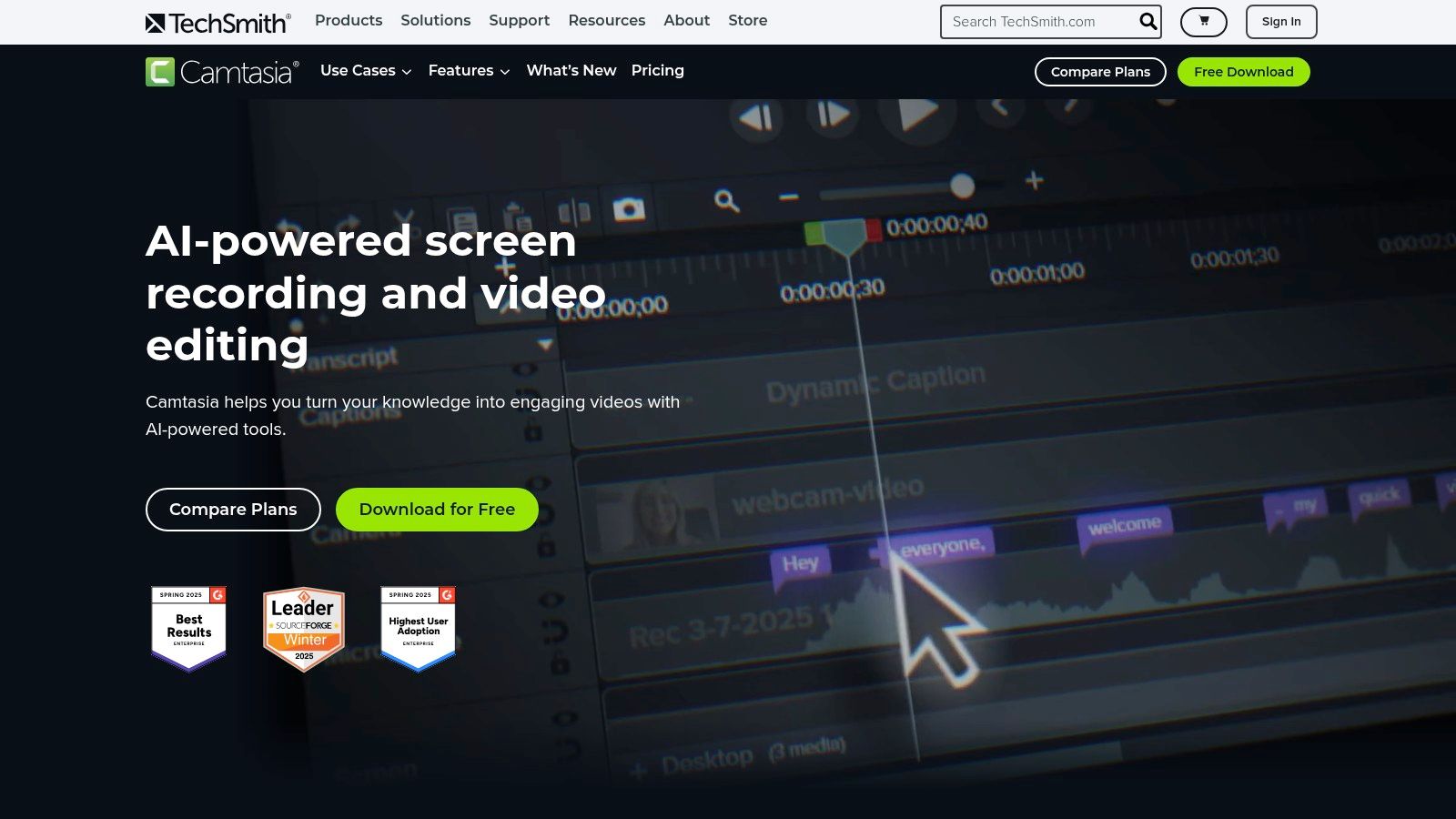
This makes it an excellent piece of video editing software for green screen tasks where speed and simplicity are more important than cinematic precision. Instead of navigating complex keying nodes or layers, you can drag and drop the effect onto your webcam footage and quickly place yourself over a screen recording or presentation slide. This streamlined process is a massive time-saver for its target audience.
Key Features and User Experience
- Remove a Color Effect: A simple yet effective tool for chroma keying. It includes basic controls for tolerance, softness, and hue to fine-tune the key.
- All-in-One Workflow: Seamlessly capture your screen and webcam, then edit the footage within the same application without needing to import files from other programs.
- Extensive Support: TechSmith offers a massive knowledge base, tutorials, and dedicated support, making it easy for new users to get started.
Camtasia's intuitive design makes it one of the most approachable editors on this list. For those creating training content, you can easily record clear audio and voice-overs directly within the platform, further simplifying the production process.
Best for: Educators, corporate trainers, and marketers who primarily create screen-recording-based tutorials and need a simple, fast green screen solution.
| Feature | Details |
|---|---|
| Pricing | Annual subscription (starts at $179.99/year), with discounts for education. |
| Pros | Extremely easy to learn, ideal for tutorials, comprehensive support resources. |
| Cons | Keying tools are basic compared to dedicated editors, subscription model may not suit all users. |
Website: https://www.techsmith.com/camtasia.html
8. Wondershare Filmora
Wondershare Filmora is a popular cross-platform editor that prioritizes simplicity and speed, making it a fantastic entry point for creators new to chroma keying. It’s designed for social media content, YouTube videos, and quick projects where a fast turnaround is more important than granular control. Its one-click Chroma Key tool gets the job done quickly, allowing users to drop in a new background with minimal fuss.
This editor is a great example of video editing software for green screen tasks that are straightforward. For users who need to quickly swap a background for a vlog or a product clip, Filmora’s streamlined process and large library of built-in effects and templates are a major advantage. It provides an approachable alternative to more complex, professional-grade software.
Key Features and User Experience
- One-Click Chroma Key: A very user-friendly tool that allows for quick background removal with simple sliders for offset, tolerance, and edge feathering.
- AI-Powered Tools: Higher-tier plans include AI features like automatic captioning and text-to-speech, which can speed up the content creation workflow significantly.
- Templates and Effects: A massive library of drag-and-drop titles, transitions, and effects is available to help users create engaging videos quickly.
Filmora is known for its intuitive interface, but users should carefully review plan details to avoid subscription or feature-gating frustrations. For those interested in similar streamlined workflows, you can explore the benefits of automatic video editing here.
Best for: YouTubers, social media creators, and beginners looking for an easy-to-use editor with fast green screen capabilities and flexible pricing.
| Feature | Details |
|---|---|
| Pricing | Subscription plans available (starting around $49.99/year), plus a perpetual license option. |
| Pros | Very approachable UI, fast turnaround for basic green screen work, low upfront cost with a perpetual license option. |
| Cons | Less fine control than professional keyers, community reports of confusing subscription and feature-gating. |
Website: https://filmora.wondershare.com/
9. VEGAS Pro
VEGAS Pro has a long history as a capable Windows-only video editor, and it provides a solid set of tools for chroma keying. For creators on the Windows platform looking for a perpetual license option, VEGAS Pro presents a compelling choice. Its built-in Chroma Keyer effect offers direct and effective controls for removing green or blue screen backgrounds right on the timeline.
The editor is well-suited for straightforward green screen compositing without needing to leave the application. You can quickly dial in settings to get a clean key and use the included masking tools to isolate your subject. As a mature piece of video editing software for green screen, it delivers a familiar timeline experience that many editors find intuitive, making it a reliable tool for creating professional-looking composites.
Key Features and User Experience
- Native Chroma Keyer: A built-in effect with clear controls for selecting the key color, adjusting tolerance, and reducing unwanted color spill from the background.
- Advanced Tools in Suite Editions: The higher-tier VEGAS Pro Suite includes advanced Mocha VEGAS for sophisticated planar tracking and masking, ideal for complex shots where the camera or subject is moving.
- OFX Plugin Support: Expand your keying toolkit by adding powerful third-party OFX plugins like Boris FX Primatte Studio for even more precise results on challenging footage.
VEGAS Pro offers flexible licensing with both subscription (VEGAS 365) and perpetual options, often featuring promotional sales that make it highly accessible. While its native keyer is proficient, some users may turn to OFX plugins for the most demanding keying tasks.
Best for: Windows-based video creators, YouTubers, and small production teams looking for a powerful NLE with flexible licensing and the option to add advanced compositing tools.
| Feature | Details |
|---|---|
| Pricing | Subscription (starts at ~$12.99/month) or Perpetual license options available. |
| Pros | Mature and familiar timeline editor, flexible licensing models, Suite tier includes advanced Mocha tracking. |
| Cons | Windows only, some users prefer third-party plugins for the most difficult keying jobs. |
Website: https://www.vegascreativesoftware.com/us/vegas-pro/
10. LumaFusion
LumaFusion has established itself as the go-to professional video editor for iPad and iPhone, making high-quality mobile production a reality. Its green screen capabilities are surprisingly robust for a mobile app, offering creators a powerful toolset for on-the-go editing. With its built-in Chroma Key effect, LumaFusion provides a clean, intuitive interface for keying out green or blue screens directly on a touch-screen device.
The editor is perfect for mobile journalists, vloggers, and social media creators who need to produce polished content without being tied to a desktop. You can easily adjust the keying parameters, suppress color spill, and refine edges, making it a formidable piece of video editing software for green screen work that prioritizes portability and efficiency. The recent addition of a Person/Background keyer further simplifies background removal for certain types of footage.
Key Features and User Experience
- Intuitive Chroma Keyer: A touch-friendly tool with sliders for hue, saturation, and brightness, allowing for precise green screen removal.
- Pro Add-ons: LumaFusion offers features traditionally found in desktop software, such as multicam editing and FCPXML export for seamless workflow integration with Final Cut Pro.
- Affordable One-Time Purchase: Unlike subscription-based models, LumaFusion is available as a single purchase, making it an accessible, long-term investment for mobile creators.
While the app is incredibly powerful for its platform, its user interface is designed for touch, which is highly efficient for mobile workflows. The active community and wealth of tutorials make it easy for new users to get started with its more advanced features.
Best for: Mobile content creators, journalists, and professional editors who need a powerful, portable editing solution on an iPad or iPhone.
| Feature | Details |
|---|---|
| Pricing | One-time purchase of $29.99 (with optional in-app purchases) |
| Pros | Professional-grade features on mobile, affordable one-time cost, touch-friendly controls. |
| Cons | Mobile only, keyer quality is highly dependent on good lighting and footage. |
Website: https://luma-touch.com/lumafusion/
11. Boris FX Continuum – Primatte Studio
For professionals who find built-in keyers limiting, Boris FX Continuum’s Primatte Studio is a specialized plugin designed to rescue even the most challenging green screen shots. Rather than a standalone editor, it operates within popular hosts like Adobe Premiere Pro, After Effects, and DaVinci Resolve, supercharging their capabilities. Its Academy Award-recognized algorithm excels at handling fine details like hair, smoke, and semi-transparent elements.
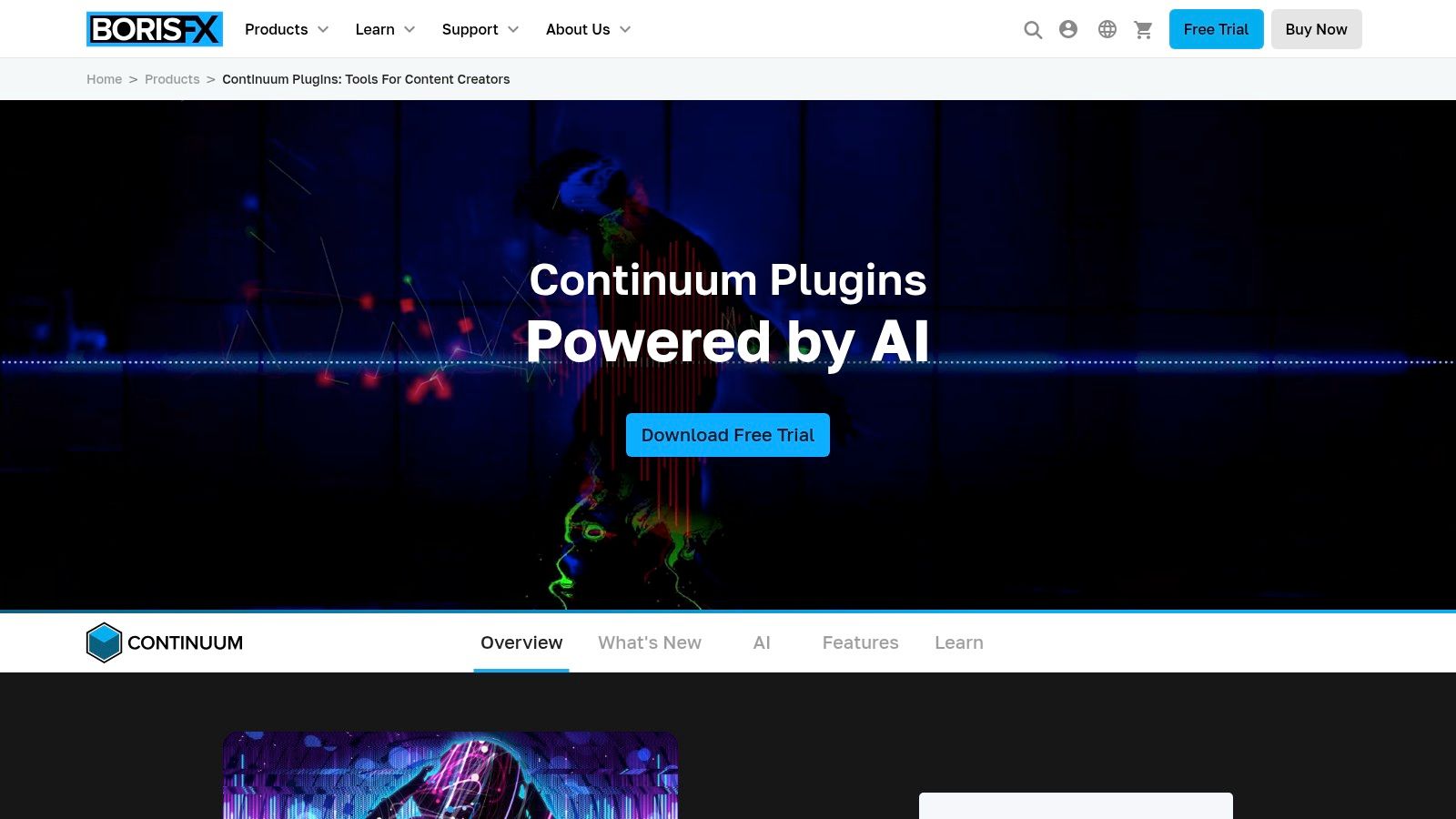
This plugin is the go-to tool when a standard keyer fails. With advanced spill suppression, light-wrapping to blend your subject seamlessly with the new background, and integrated Mocha planar tracking for masking, it provides a complete keying suite. Primatte Studio is a powerful piece of video editing software for green screen compositing that solves complex problems that other tools can't.
Key Features and User Experience
- Primatte Keying Algorithm: A world-class keyer that provides exceptional control over isolating subjects, especially with difficult details like hair and motion blur.
- Integrated Mocha Tracking: Includes the industry-standard Mocha planar tracking and masking tools directly within the plugin, allowing for precise, tracked garbage mattes without leaving your NLE.
- Advanced Refinement Tools: Features comprehensive modules for spill suppression, edge cleaning, and light-wrapping to create a photorealistic and believable composite.
While it has a premium price, its ability to save a difficult shot can be invaluable. The workflow is streamlined, offering real-time feedback that makes complex adjustments feel intuitive for experienced editors.
Best for: Visual effects artists, professional colorists, and high-end video editors who need to tackle poorly lit or complex green screen footage and require the best keying tools available.
| Feature | Details |
|---|---|
| Pricing | Available as part of the Boris FX Continuum suite (starts at $695 annually or $1,995 for a new perpetual license) |
| Pros | Industry-leading keying for difficult shots, integrated Mocha tracking, works across multiple host applications. |
| Cons | Premium pricing, requires a compatible host application (NLE or VFX software). |
Website: https://borisfx.com/products/continuum/
12. Envato Elements
Envato Elements isn’t software but rather a massive digital asset library that is essential for anyone doing green screen work. It provides an unlimited-download subscription to millions of stock videos, including a vast collection of green screen backgrounds, overlays, and pre-keyed motion graphics. This makes it an invaluable resource for creators who need high-quality, ready-to-use assets without shooting everything themselves.
Instead of being a tool to perform the keying, Envato Elements provides the content for your composites. Whether you need a bustling cityscape, an animated lower third on a green background, or a complex visual effect, you can find it here. This makes it a perfect companion to nearly any video editing software green screen tool, saving immense time in production and post-production.

Key Features and User Experience
- Massive Green Screen Library: Access thousands of high-resolution green screen footage clips, motion backgrounds, and animated elements ready for keying.
- Unlimited Downloads: A single subscription provides unlimited access to the entire library, including video templates, music, and sound effects.
- Simple Commercial Licensing: Assets downloaded with an active subscription are covered by a straightforward commercial license, simplifying usage rights for business projects.
- Advanced Filtering: Easily search for assets by resolution (up to 4K), frame rate, or whether they include an alpha channel for immediate transparency.
The platform is incredibly user-friendly, with powerful search and filtering tools that help you find the perfect asset quickly. For content creators on a tight deadline, the ability to download a professionally shot green screen background can be a game-changer.
Best for: Content creators, marketing agencies, and YouTubers who need a steady supply of high-quality green screen plates, motion graphics, and background assets to speed up their workflow.
| Feature | Details |
|---|---|
| Pricing | Subscription-based (starts at $16.50/month) |
| Pros | Cost-effective for high-volume asset needs, ready-to-key assets speed up production significantly. |
| Cons | Requires careful selection to match lighting and style, assets must be licensed for each project use. |
Website: https://elements.envato.com/
Top 12 Green-Screen Video Editors Comparison
| Product | Core features | Workflow & ease | Target audience | Value / Unique selling points | Price / Licensing |
|---|---|---|---|---|---|
| Sprello (Recommended) | AI script gen, visual storyboard, generative B‑roll/images, 20+ AI avatars & voices, auto captions, PiP, BG removal | All‑in‑one drag‑and‑drop script→storyboard→preview→export; fast iteration | Brands, agencies, creators, e‑commerce, marketing teams | Credits only for new AI generations, unlimited renders from own assets, integrated top models, built‑in productivity tools | Starter $29/mo, Growth $59/mo, Scale $119/mo; 3‑day trial; enterprise plans |
| Adobe Premiere Pro | NLE editor, Ultra Key, broad codec & GPU support, AE round‑trip | Professional timeline editing, moderate learning curve | Video editors, post teams, prosumers | Industry standard, large plugin/tutorial ecosystem | Creative Cloud subscription |
| Adobe After Effects | Keylight/Key Cleaner, Advanced Spill Suppressor, rotoscoping, motion tracking | VFX/compositing workflow, steep learning curve | VFX artists, compositors, film/TV post | Gold‑standard keying and finishing tools, extensive plugins | Creative Cloud subscription |
| Apple Final Cut Pro | One‑click Green Screen Keyer, viewer refinement, Apple Silicon optimized | Fast, approachable editing on macOS; iPad companion | Mac creators, speed‑focused editors | Very fast on Apple Silicon, touch/Pencil iPad workflows | One‑time Mac purchase; iPad via subscription |
| Blackmagic DaVinci Resolve | Fusion keyers (Chroma/Delta), node‑based compositing, world‑class color tools | All‑in‑one Edit/Fusion/Color/Fairlight; learning curve for nodes | Colorists, prosumers, professionals | Robust free tier; Studio adds AI/pro codecs; one‑time Studio license | Free tier; Resolve Studio one‑time purchase |
| CyberLink PowerDirector | Chroma key with spill controls, templates, guided UI | Beginner‑friendly, fast templated edits | Beginners, social creators | Flexible licensing (subscription or perpetual), frequent content updates | Subscription (365) or perpetual license |
| TechSmith Camtasia | Screen capture + Remove a Color, Background Removal, basic editor | Capture+edit easy workflow, very approachable | Educators, trainers, business communicators | All‑in‑one capture & edit, strong support & EDU discounts | Annual subscription (recent model) |
| Wondershare Filmora | One‑click chroma key, templates, AI tools in higher tiers | Simple interface for quick results | Beginners, social creators | Low upfront cost, perpetual license option, many templates | Subscription or low‑cost perpetual license |
| VEGAS Pro | Native chroma key, OFX plugin support, Mocha in Suite | Traditional timeline NLE (Windows only) | Windows creators, indie editors | Multiple licensing options, Suite adds masking/tracking | Perpetual or 365 subscription; 30‑day trial |
| LumaFusion | Chroma Key, Person/Background key, multicam & FCPXML export | Touch‑first interface on iPad/iPhone, intuitive | Mobile creators, journalists, on‑the‑go editors | Affordable one‑time app purchase, pro mobile features | One‑time app purchase; optional Creator Pass |
| Boris FX Continuum – Primatte Studio | Primatte keying, Mocha planar tracking, spill suppression, light‑wrap | Plugin workflow across hosts (AE, Premiere, Resolve, VEGAS) | VFX artists, post houses needing rescue keying | Superior results on difficult keys (hair, semi‑transparent edges) | Premium paid plugin (perpetual/subscription options) |
| Envato Elements | Unlimited downloads: green‑screen backgrounds, templates, overlays | Asset library to complement any editor | High‑volume creators, agencies needing assets | Massive ready‑to‑key asset library with commercial license | Unlimited‑download subscription |
Finding Your Perfect Green Screen Workflow
Navigating the world of video editing software green screen tools can feel overwhelming, but as we've explored, the landscape is rich with options tailored to every conceivable need. From the Hollywood-grade precision of DaVinci Resolve and Adobe After Effects to the user-friendly efficiency of Filmora and Camtasia, there's a solution for every creator. Your perfect workflow isn't about finding the single "best" software; it's about identifying the right tool for your specific goals, technical skills, and production demands.
The key takeaway is that the definition of "green screen" work is expanding. The traditional, meticulous process of lighting a physical screen, keying out the color, and refining the edges remains a powerful technique, especially for cinematic projects. Professional editors will continue to rely on the granular controls found in Premiere Pro, Final Cut Pro, and specialized plugins like Primatte Studio for this level of detail. These tools offer the deep customization needed for flawless composites, handling everything from subtle hair details to complex motion.
Shifting from Traditional to AI-Powered Workflows
However, the most significant shift in the market is the rise of AI-driven solutions. Tools like Sprello are fundamentally changing the conversation. They prove that you no longer need a physical green screen, specialized lighting, or advanced keying skills to achieve a professional composited look. By leveraging AI for one-click background removal, these platforms democratize video production.
This evolution splits the decision-making process into two clear paths:
- The Traditionalist Path: Choose this if you require pixel-perfect control for high-end film, television, or commercial projects. Your workflow involves shooting with a physical green screen and using powerful software like DaVinci Resolve or After Effects for meticulous post-production. This path offers maximum control but demands more time, skill, and resources.
- The Innovator's Path: Choose this if your priority is speed, efficiency, and scalability, especially for social media, e-commerce, or corporate marketing content. Your workflow bypasses physical setups entirely, using AI tools like Sprello to remove backgrounds from any video and instantly place subjects in new environments. This path offers incredible speed and accessibility.
How to Choose Your Ideal Software
To find your perfect match, ask yourself a few critical questions. Is your primary goal creating a quick, engaging social media ad, or are you producing a short film with complex visual effects? Are you working alone and need to produce content rapidly, or are you part of a larger team with dedicated post-production roles? Your budget, timeline, and desired output quality will guide your selection.
Remember that the software is only one part of the equation. Mastering the tool is essential, but so is understanding the principles of good storytelling and visual engagement. Beyond just knowing the tools, understanding the art of captivating an audience is essential; learn more about how to make videos people actually watch to enhance your overall production value. Ultimately, the best video editing software green screen is the one that removes friction from your creative process, allowing you to bring your vision to life efficiently and effectively. Don't be afraid to experiment with free trials to find the platform that feels most intuitive for you.
Ready to skip the complexities of traditional green screen setups? Sprello uses AI to remove video backgrounds with a single click, letting you create stunning, professional-looking videos in minutes, not hours. See how easy it is to elevate your content by visiting Sprello today.


