October 31, 2026
How to Make a 4x6 Photo Template for Print
Build a 4x6 photo template at 1200×1800 px and 300 PPI, with bleed, a safe zone, and export settings for lab, inkjet, and retail print.
A production 4x6 photo template trims at 4 by 6 inches and is 1200 by 1800 pixels at 300 PPI. Save those dimensions, crop rules, and orientation variants in Sprello when the same card has to repeat across SKUs, so a merchandising team isn't rebuilding the spec for every colorway.
Most advice on this format stops at the pixel count, and that's where brand teams get caught. A file can pass a 300 PPI check and still lose a logo, a model's hands, or a line of pack copy to an automatic crop. The harder problem is aspect ratio and borderless overprint, not resolution.
What Size Should a 4x6 Photo Template Be
A production 4x6 photo template trims at 4 by 6 inches (101.6 by 152.4 mm, about 10 by 15 cm) and is 1,200 by 1,800 pixels at 300 PPI, and Sprello can store those dimensions, crop rules, and orientation variants as reusable parameters when the same card repeats across SKUs. Pick one row from the table below and lock it before any art starts.
Published March 2026.
The geometry behind the size
The Paper Sizes guide to 4R photo paper sets the format at 4 × 6 inches, equivalent to 101.6 × 152.4 millimeters, with a 3:2 aspect ratio that matches the 24 × 36 millimeter frame of 35mm film. That shared geometry is why the format works cleanly for snapshots, portrait prints, and contact sheets without cropping or distorting the composition. Kodak introduced 135 film in 1934, and its frame became the standard the print later inherited.
You'll see the same dimensions under other names. Internationally it's 4R, in Europe it's 10×15 cm, and in Japan it's KG size. None of those labels changes the canvas. What does change the result is the trim at a specific lab, since some commercial services deliver roughly 4 by 5⅞ inches to account for paper handling and trimming. Ask for the delivered size, don't assume it.
Every canvas you actually need
| Canvas | Inches | Pixels | Use |
|---|---|---|---|
| Portrait trim | 4 × 6 | 1200 × 1800 at 300 PPI | Final image area, about 2.2 MP |
| Landscape trim | 6 × 4 | 1800 × 1200 at 300 PPI | Horizontal cards and inserts |
| Portrait with bleed | 4.25 × 6.25 | 1275 × 1875 at 300 PPI | Edge-to-edge, 0.125 in bleed each side |
| Landscape with bleed | 6.25 × 4.25 | 1875 × 1275 at 300 PPI | Edge-to-edge horizontal |
| Safe area inside trim | 3.75 × 5.75 | 1125 × 1725 at 300 PPI | Faces, logos, product detail, copy |
| Screen proof only | 4 × 6 at 150 PPI | 600 × 900 | Review file, not a print master |
The safe area row is the one teams skip. It pulls 0.125 inch in from every trim edge, so anything that matters sits clear of the cutter and the printer's registration drift. The 600 by 900 row is a review file for stakeholders, never a print master, and it should be named that way so nobody sends it to a lab.
Lock one row first. Portrait or landscape, bordered or bleed, print master or screen proof. Every later argument gets shorter once that row is fixed.
A 4:3 phone photo and a 16:9 campaign frame won't fill this canvas without a crop or a border, and that's a decision to make now rather than at export. If you're checking how a source image holds up at a larger output size before you commit it to a card, the photo quality tips for personalized blankets from That Blanket Co. walk through the same pixel-to-print-size reasoning at a bigger scale.
How to Build and Export the Print File
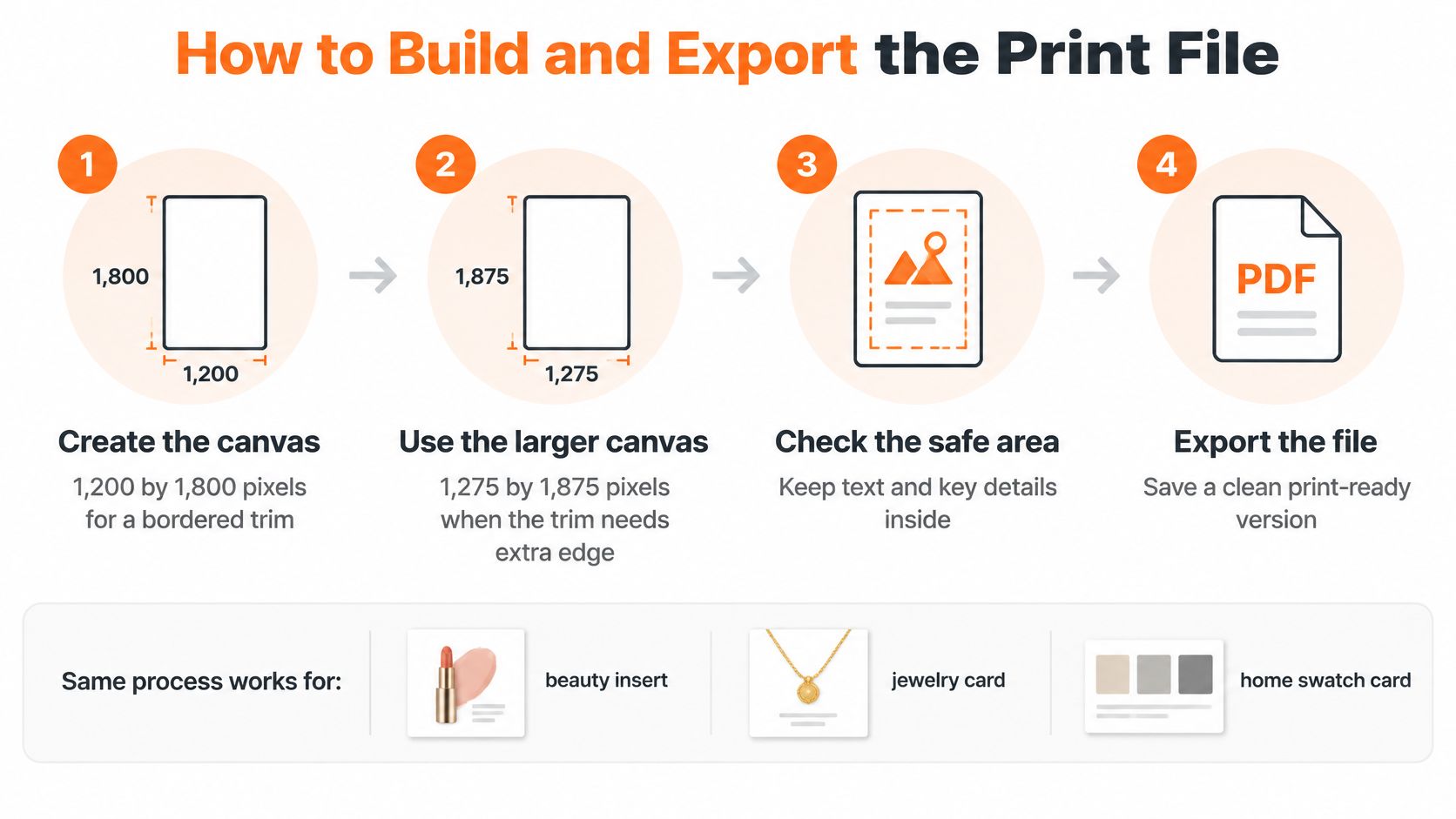
One file path covers a beauty insert, a jewelry card, and a home swatch card. The steps don't change, only the artwork inside them does. The Cloudinary 4x6 size tool confirms the base spec, a 2:3 aspect ratio at a 4 × 6 inch trim, which needs 1,200 × 1,800 pixels at 300 PPI.
The seven steps in order
- Create the canvas at final size. Use 1,200 by 1,800 pixels for a bordered trim, or 1,275 by 1,875 pixels when the printer needs 0.125 inch bleed on every side. Building at final size means type and detail are judged at the size they'll print, which prevents the late discovery that a legal line is unreadable.
- Crop the source to 2:3 before any scale. A 4:3 phone shot or a 16:9 campaign frame has to lose something, and a person should choose what. If you skip this, a fit button chooses for you at export.
- Place the subject inside the safe area. Keep logos, faces, product details, and copy at least 0.125 inch inside the trim. Printer registration and automated cropping eat edges, so anything flush to the trim is already at risk.
- Set type and barcodes at final size. Read them at 100 percent on screen, then run a simulated trim that cuts the bleed away. A barcode that only scans before trimming isn't a barcode.
- Assign the color space the destination asked for. For a consumer photo lab that's usually sRGB. Don't convert to anything else on instinct, because the receiving spec overrides your house default.
- Export without a second resize. Name the file with SKU, orientation, and version so the print buyer can tell the horizontal bleed file from the portrait proof at a glance. A second resize on export is how a correct canvas becomes a soft one.
- Proof one print before any batch. Include skin, a neutral, a saturated brand color, and a fine product edge in that single proof. That's the cheapest moment to catch a color shift or a clipped finding.
Slips that pass a pixel check and still fail
Three mistakes recur. Upscaling a small JPEG to 1,200 by 1,800 gives you the right numbers and a blurry card, because no new detail was created. Turning on borderless without artwork extended into the bleed leaves a white sliver or forces the driver to enlarge the image past the trim. Letting an auto-fit setting handle the final step adds a border you didn't design or clips a frame you did.
The proof is the release gate, not the pixel count. If the proof is wrong, the file is wrong, whatever the dimensions say.
Sizing discipline like this shows up in other print trades too. The bass drum artwork sizing tips from Custom Bass Drum Head make the same point for a very different surface, that artwork built to the wrong physical dimensions can't be rescued by a sharp file. Build to the trim, proof once, then batch.
Which Export Settings Match Each Print Channel
One master layout can feed several outputs, but color, file type, and bleed aren't shared between them. A file that's correct for a consumer lab is wrong for a bordered in-store card, and sending the contact sheet PDF to a lab is a mistake teams make more often than they'll admit. The HP guide to printing photos at home lays out the color sequence, identify the paper and printer pair, select the matching media type, and use an ICC profile for that ink and paper combination.
| Destination | Color | File | Bleed | Watch-out |
|---|---|---|---|---|
| Consumer photo lab | sRGB unless the lab says otherwise | JPEG | Often none; confirm the spec | Auto-fit cropping, and trims near 4 by 5⅞ in |
| Home or studio inkjet | ICC for that ink and paper | JPEG or TIFF | 0.125 in if borderless | Color managed in app and driver at once |
| Retail insert or commercial printer | Only the space the printer names | PDF or TIFF as specified | 0.125 in | CMYK conversion nobody requested |
| Bordered in-store card | sRGB | JPEG | None | Borderless driver clipping a correct file |
| Internal contact sheet | sRGB proof | PDF with marks | Marks outside trim | Sending the marked PDF to a lab |
Where color actually goes wrong
Assign color management to the editing application or the printer driver, never both. Dual color management produces muddy or shifted color, and it's hard to diagnose because each stage looks reasonable on its own. The wrong media type setting is the other quiet failure, since it controls how much ink the printer lays down for that paper. Pick glossy settings for a matte stock and you'll get washed-out, oversaturated, or smeared output from a file that was fine.
Converting to CMYK because it feels more professional is a third trap. Most consumer labs expect RGB, and an unrequested conversion narrows your color before the lab's own process touches it. If a commercial printer wants CMYK, they'll name the profile. Our notes on how neon color codes behave across screens and print cover why saturated brand colors need that conversation before export, not after a disappointing proof.
The acceptance check for any channel
Hold every destination to the same five tests: 300 PPI at final size, correct 2:3 framing, no unintended border, type that stays readable after trimming, and a proof whose color holds on skin tones, neutrals, saturated brand colors, and fine product detail. If any one fails, the file doesn't ship.
For teams producing these at volume, validate pixel dimensions, orientation, embedded profile, file format, and bleed automatically before approval rather than trusting a filename. If you're handing artwork to an outside vendor for the first time, it's worth reading how to prepare artwork with Simply Merchandise, since their submission basics cover the same file hygiene a print buyer will check. A checklist at intake costs minutes. A reprint costs a launch date.
How to Protect the Subject When the Frame Crops
Say a beauty brand sends a lookbook mini-card to a lab as a clean 1,200 by 1,800 file. It comes back with the model's fingers cut at the knuckle and half the logo gone. Nothing about the resolution was wrong. The 4over4 guide to 4x6 photo size in print makes the underlying point, that images in other ratios get proportionally resized and cropped, while "fit" layouts preserve the whole image but create borders.
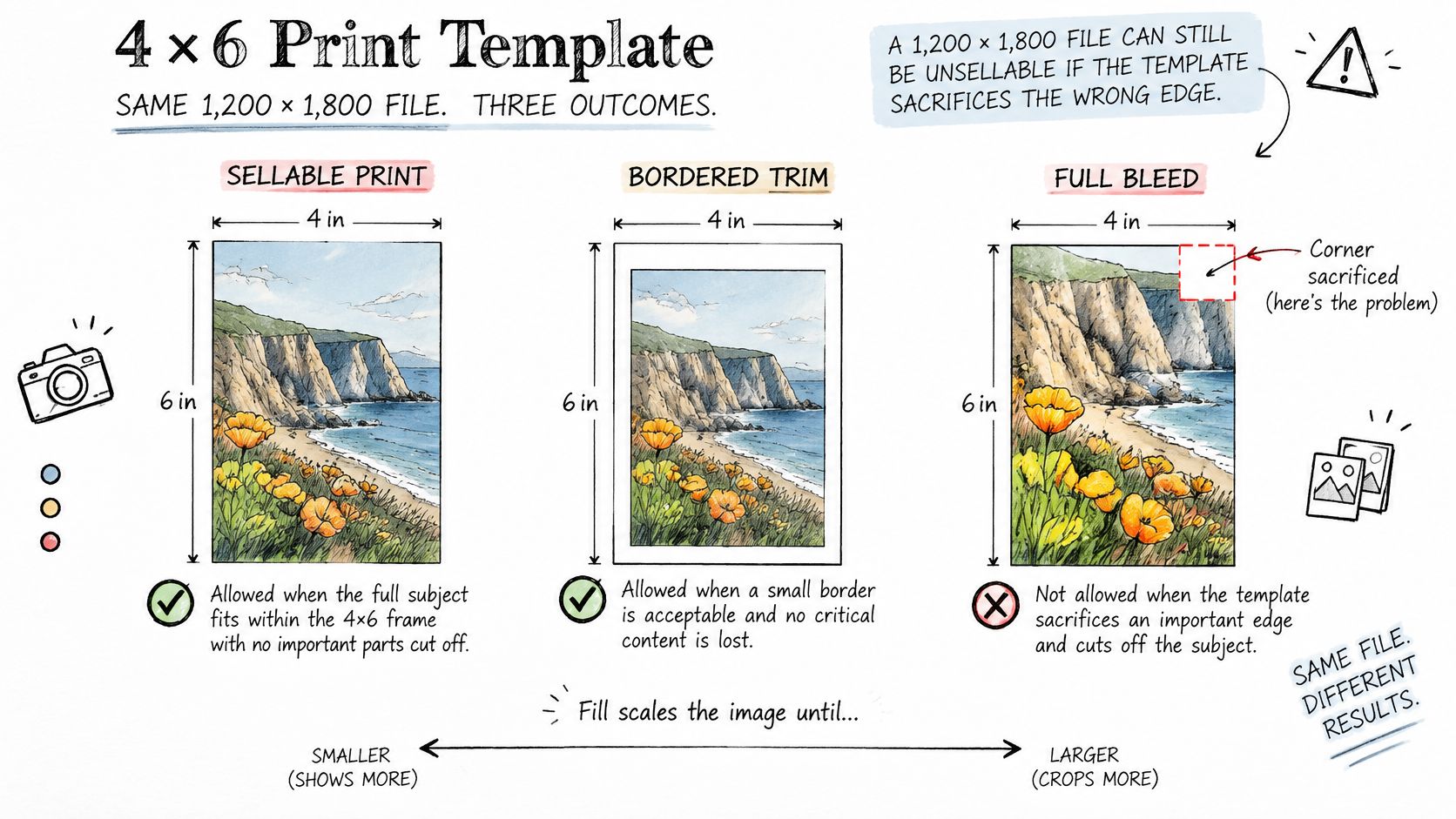
Three outputs and when each is allowed
- Fill: Scales the image until the 2:3 frame is fully covered, then crops whatever overflows. Use it for a garment flat or a bottle shot only after the hero detail sits inside the safe zone, because fill will take the edges without asking.
- Fit: Keeps the whole image and adds borders to make up the difference. Use it for a full silhouette, a labeled diagram, or a textile where the edge itself is the content and clipping would be worse than a margin.
- Manual crop: A person frames each image deliberately. This is the default for faces, logos, jewelry findings, clasps, and pack copy, where the cost of a wrong automatic crop is a card you can't hand out.
On a lookbook mini-card, a model's hands and the logo often sit in the outer eighth of a 4:3 original, which is exactly the band fill removes. Our roundup of lookbook examples that hold up in print shows how much edge room those compositions leave themselves. On a swatch card the logic flips, fit is safer because the textile edge and its label are the information.
Borderless printing takes pixels too
Borderless printers slightly overprint beyond the edge so no white border survives, which means even a perfectly proportioned 2:3 image loses edge pixels. Teams blame the lab, but the file handed over its margins willingly. Draw three lines on the template and make them visible to anyone placing art: the trim line, a 0.125 inch bleed zone outside it, and an inner safe zone inside it. Reject a variant when type, a barcode, a QR code, or a face crosses into the risk band between safe zone and trim.
One more source of surprise is legacy art. Older 3.5 by 5 inch (3R) prints were the previous snapshot size before 4x6 took over, and moving artwork between those frames is another crop, not a resize. Reframe it properly or the same edge losses repeat.
A high-resolution image can still produce a commercially unusable print if the template doesn't control what gets sacrificed at the edges.
Close every variant with a three-line check. Subject inside the safe area. No type sitting in the bleed. One human looks at the first SKU produced under each crop rule before the rule runs across the range.
How to Reuse One Template Across a Catalog
A 4x6 template can hold a consistent frame across a catalog, but only if its rules are explicit. Each new SKU, market, or version introduces another chance for an image or copy field to overflow or crop incorrectly. Build the template around fixed brand elements and clearly named variable fields, then apply the same checks to every output.
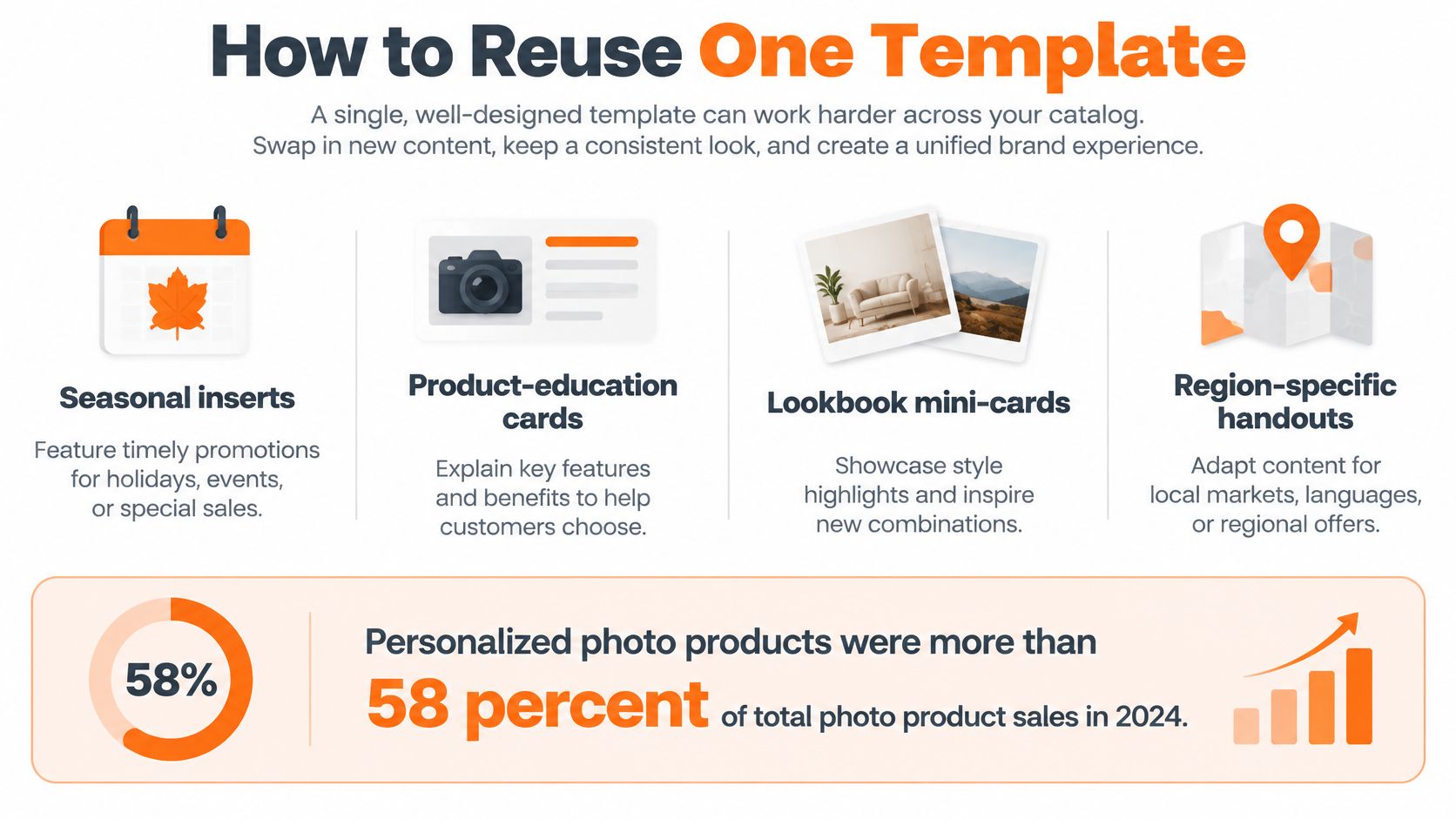
What a locked template should hold
- Brand zones that don't move: Keep the logo block, legal line, and footer fixed so regional edits cannot shift them toward the trim.
- Variable image and copy fields: Name each slot and map it to the relevant SKU data. A new colorway should use the same frame and crop rule.
- Room for translated lines: Test the longest language first. A headline that fits in English may overflow in another language.
- A fixed barcode or QR box: Keep it inside the safe area at final size, then check that it remains scannable after a simulated trim.
- A filename that carries its own record: Include SKU, market, and version, and keep version control so an old card does not enter a new batch.
- A preflight before print: Check resolution, bleed, color profile, and safe margins on every variant, not just a sample.
Where the workflow should live
Choose the tool by the work it needs to repeat. A layout application can establish the master file; repeatable catalog work also needs clear handoffs and consistent brand rules.
| Option | Use it for | Do not expect | Fit for catalog cards |
|---|---|---|---|
| Layout applications | One master, crop marks, manual type | Thousands of localized variants without added process | Strong for the first file, slower to repeat |
| Photo lab uploaders | A few consumer-style prints | Brand safe zones and version control | Easy to mis-crop with auto fit |
| PLM and planning suites | Product records and planning | Card layout and print-file preparation | Keep them for planning; handle card design separately |
| Sprello | Assortment visualization, saved workflow templates, brand guardrails, and catalog-scale AI product photography | A replacement for print-layout and preflight work | Useful for coordinating repeatable creative workflows across SKUs and channels |
Sprello is an AI workflow canvas for fashion, beauty, and lifestyle brands. Teams can use its visual canvas to design and review workflows, apply brand guardrails, and standardize repeatable processes with workflow templates and seasonal production dossiers. For catalog-scale imagery, product photography automation for large assortments describes how AI-assisted content production can support large product ranges.
Keep the 4x6 production rules close to the creative workflow, but do not treat a visual workflow as a print preflight. The exported file still needs the correct dimensions and a check that the frame does not crop a product, logo, or line of copy.
Which Remaining 4x6 Choices Need a Decision
A 4x6 template can have the right pixel count and still fail in print. Settle these choices before reusing it across a range.
Is a 4x6 passport sheet the same template
No. A sheet with six 2 by 2 inch ID photos uses a different layout, with head-size and background rules that a product card does not cover. The paper size matches; the design requirements do not.
Can you place six product tiles the same way
Only if each tile has its own layout and safe area. An ID-photo grid spaces images for cutting, not for protecting product logos or copy. Leave cutting tolerance between tiles, then adjust the design so that added space does not crowd the content.
Why did 4x6 replace 3.5 by 5
The larger 3:2 print preserves 35mm film geometry while offering a bigger viewing area than the older 3R size. Many digital SLR and interchangeable-lens cameras also shoot 3:2, helping keep the format in use after film faded. Artwork made for 3R needs a new crop for 4x6; it is not a drop-in replacement.
Should every file be 300 PPI
Use 300 PPI for the print master. A 600 by 900 file at 150 PPI is suitable as a screen proof for stakeholder review, not for a lab. Label it clearly in the filename. Two distinct files are safer than one ambiguous file sent to print under deadline pressure.
Where do QR codes and translated copy go
Keep them inside the 0.125 inch safe inset and test the longest translated line at final size before a regional batch runs. Borderless overprint can clip a QR code's quiet zone or cut into copy, even when the file has the correct pixel count.
Does Sprello replace the PLM or the printer
No. Sprello keeps visual workflows, saved template parameters, and buyer assortments alongside those systems. The PLM holds the product record; the printer sets the output specification. A saved workflow can keep 4x6 size, bleed, and crop rules with the visuals for the next line review.
For 4x6 cards, inserts, and lookbook mini-cards across a catalog, Sprello lets teams save size, bleed, and crop parameters and apply them to photoreal colorways, line sheets, and per-buyer assortments in one shared catalog. Book a demo to set up a reusable workflow for your next range.
Related
More to explore
Fresh reads
4 Square Chart Guide for Fashion Line Reviews
A 4 square chart sorts fashion styles into four decisions. See axes, scores, quadrant actions, and a line-review template.
What Is a Context Diagram? Notation, Examples and Uses
Learn what is a context diagram: its system boundary, external entities and labeled flows, notation rules, and a fashion product-development example.
Bulletin Boards Online Compared for Brand Teams in 2026
Compare bulletin boards online for creative ops, remote review, and merchandising planning, with features, plan limits, and best uses for brand teams.